Basic Search
The basic search interface is your primary tool for finding parts in the MHS Partner Portal. This guide covers the three main search types and how to use them effectively.
Accessing the Search Interface

Screenshot needed: Main search interface showing the search input field, dropdown for search types (Exact Part Number, Fuzzy Part Number, Description), search button, and expandable sections for search history and favorites
To start searching for parts:
Click “Part Enquiry” in the main navigation
Or use the search box on your dashboard
Or click “Search parts” from quick actions
The search interface includes: - Search input field with auto-complete - Search type selector - Search button - Search history and favorites (expandable)
Search Types
The portal offers three distinct search methods:
Exact Part Number Search

When to use: When you know the complete, exact part number.
How it works
Select “Exact Part Number” from the dropdown
Enter the complete part number (e.g., “HYD-123-456”)
Click Search or press Enter
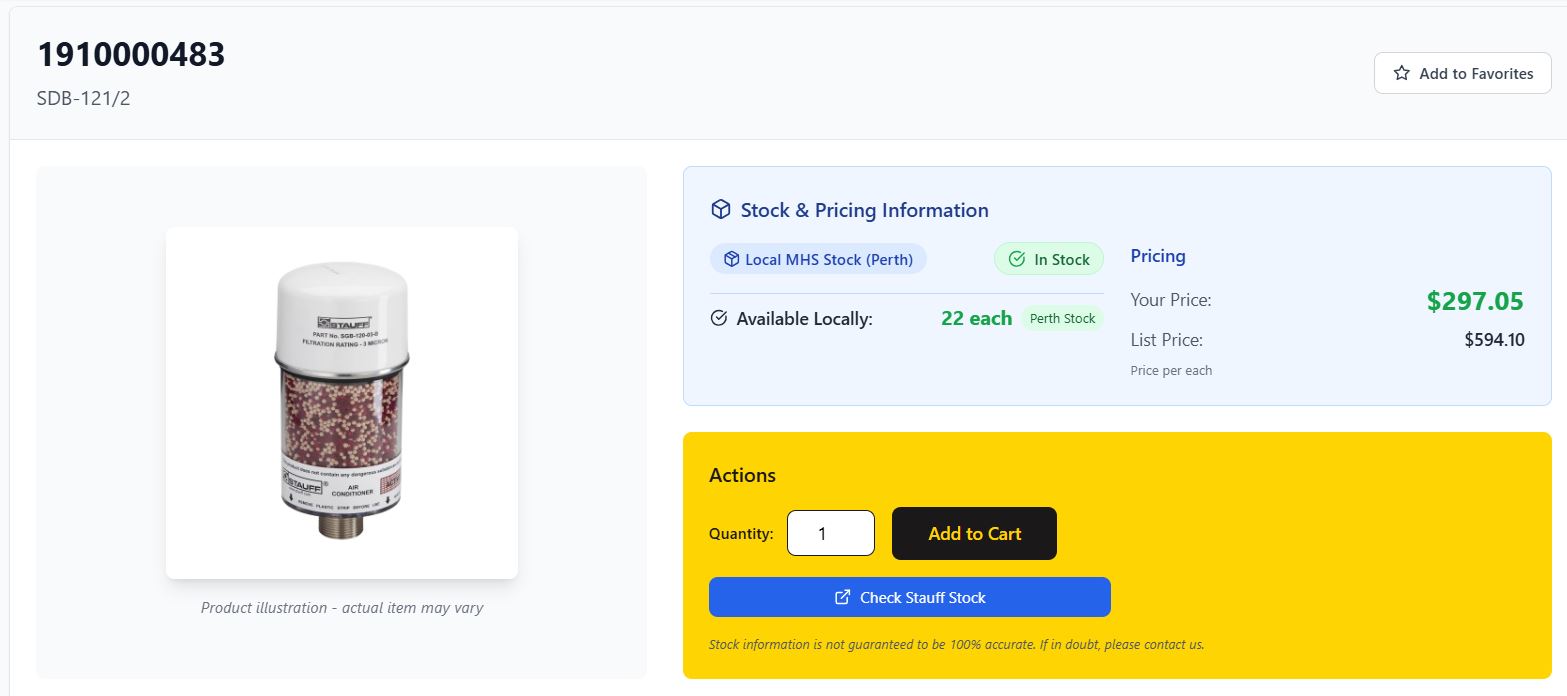
What you get: - Complete part information and specifications - Real-time stock levels - Pricing specific to your account - Technical documentation - Related parts and alternatives
Custom Part Number Support: If you’ve set up custom part number mappings, you can search using your internal part numbers. The system will: - Automatically convert to MHS part numbers - Show a notification about the conversion - Display both your part number and the MHS equivalent
Cross-Reference Handling: If you search for an alternative or legacy part number: - The system shows available cross-references - Displays both old and current part information - Provides links to search for current parts
Fuzzy Part Number Search

When to use: When you’re not sure of the exact part number or want to find similar parts.
How it works
Select “Fuzzy Part Number” from the dropdown
Enter a partial or approximate part number (e.g., “HYD-123”)
Click Search
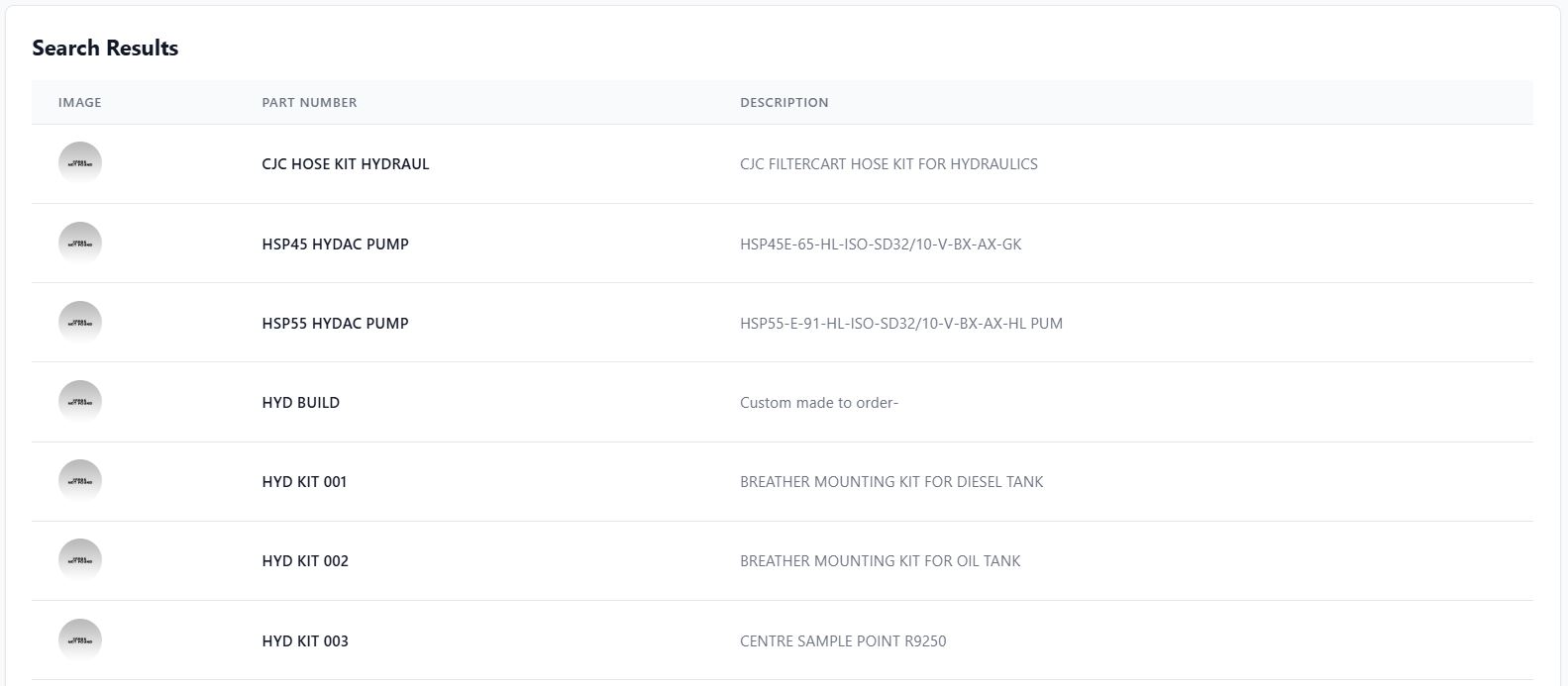
What you get: - Multiple results matching your criteria - Parts with similar part numbers - Ranked by relevance to your search term
Tips for fuzzy search: - Use key portions of the part number - Include hyphens and spaces as they appear - Try different combinations if you don’t find what you need
Description Search

When to use: When you know what the part does but not the part number.
How it works
Select “Description” from the dropdown
Enter keywords describing the part (e.g., “hydraulic pump seal”)
Click Search
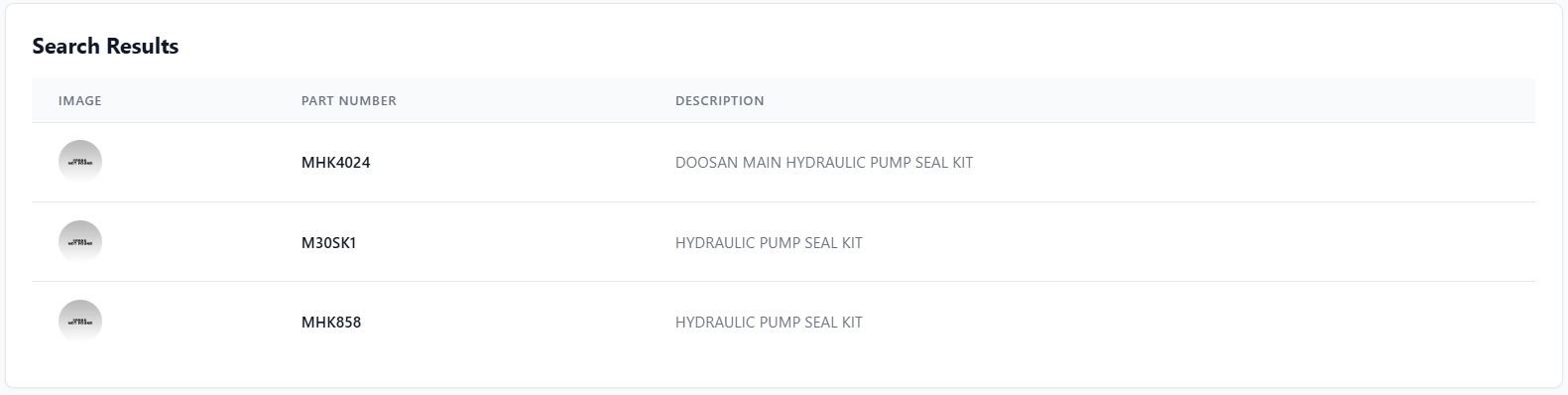
What you get: - Parts matching your description keywords - Sorted by relevance - Multiple product categories
Description search tips: - Use specific technical terms when possible - Include key specifications (size, pressure, etc.) - Try both generic and brand-specific terms - Use multiple keywords for better results
Auto-Complete Feature

As you type in the search box, the auto-complete feature provides:
Smart Suggestions: - Recently searched parts - Popular part numbers - Parts from your favorites - Related part numbers
Using Auto-Complete
Start typing in the search box
Watch for suggestions that appear below
Click on a suggestion to select it automatically
Use arrow keys to navigate suggestions
Press Tab or Enter to accept a highlighted suggestion
Understanding Search Results
Search results are presented differently based on your search type:
Exact Search Results: When you find an exact match, you’ll see: - Complete part information panel - Large product image - Detailed specifications in tabs - Stock and pricing information - Add to cart functionality
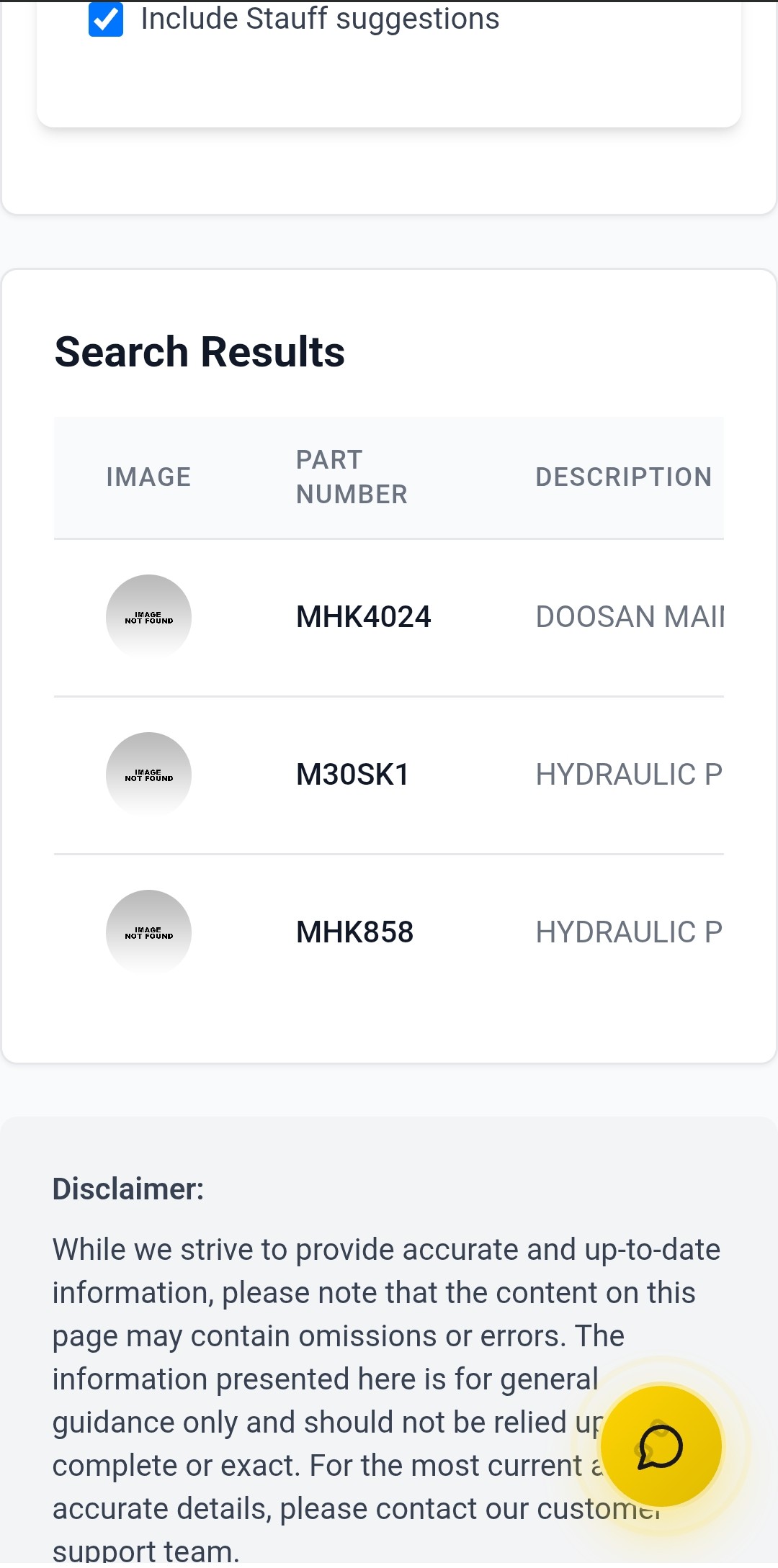
Multiple Results (Fuzzy/Description): When multiple parts match, you’ll see: - Table format with key information - Part numbers, descriptions, and images - Click any result to view full details - Sort and filter options
Stock Information Display
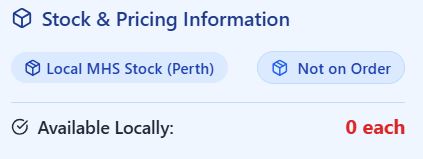
Every search result shows stock information:
Perth Warehouse Stock: - Quantity available locally - Immediate shipping availability - Stock level indicators (In Stock, Low Stock, Out of Stock)
Quantity-Specific Availability: When you specify a quantity: - Green: Can fulfill all pieces locally - Yellow: Only partial quantity available locally - Red: None available locally, check supplier
Supplier Integration: - Automatic checking of Stauff supplier stock - Extended availability information - Estimated delivery times
Search Result Actions
From search results, you can:
Add to Cart
Specify quantity needed
Click “Add to Cart”
Confirm addition with notification
Check Supplier Stock
Click “Check Stauff Stock” for extended availability
View pricing from suppliers
Add supplier items directly to cart
Add to Favorites
Click the star icon to save frequently ordered parts
Access from favorites section for quick reordering
View Detailed Information
Click part number to see full specifications
Browse through tabs for technical details
Download documentation if available
Search Tips and Best Practices
For Faster Searches: - Use auto-complete when possible - Save frequently searched parts to favorites - Set up custom part number mappings - Review search history for patterns
For Better Results: - Be specific with part numbers (include all characters) - Use technical terms in descriptions - Try multiple search approaches if needed - Check cross-references for alternative parts
For Troubleshooting: - Verify part number formatting (spaces, hyphens) - Try fuzzy search if exact search fails - Use description search as a fallback - Check for typos in your search terms
Common Search Scenarios
Scenario 1: Known Part Number - Use exact search - Check for custom mappings - Verify stock availability
Scenario 2: Similar Part Needed - Start with fuzzy search - Browse related results - Check specifications carefully
Scenario 3: Replacement Part - Use description search with key terms - Compare specifications - Verify compatibility
Scenario 4: Bulk Ordering - Search for each part individually - Use favorites for common parts - Consider bulk upload for large lists
Mobile Search
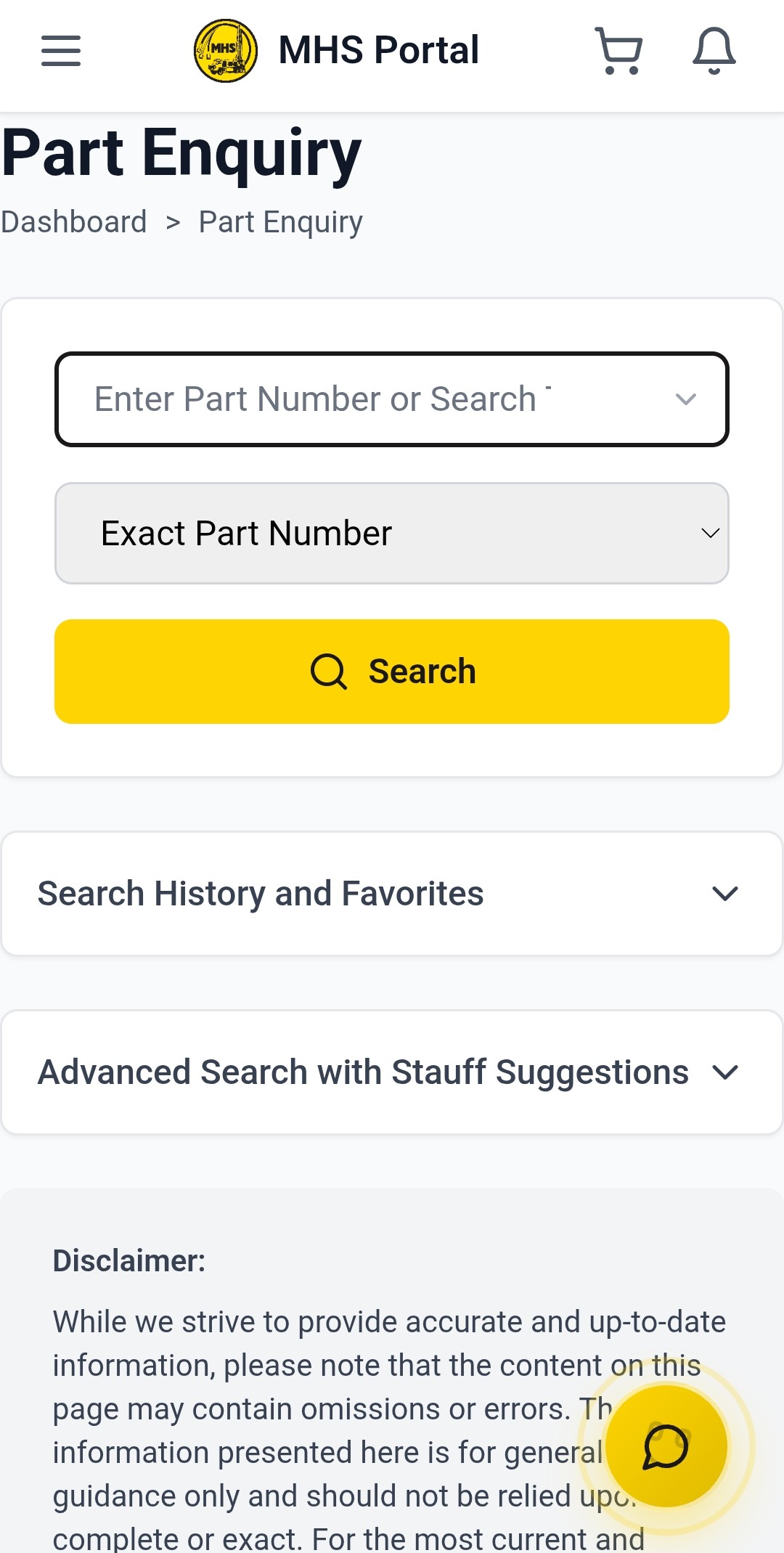
On mobile devices: - Tap search box to open keyboard - Use voice input if available - Swipe through results easily - Access QR scanner for quick part lookup
Next Steps
Once you’ve mastered basic search:
QR Code Scanning - Learn mobile scanning for instant lookup
Search History and Favorites - Manage your search patterns and favorites
Advanced Search - Explore advanced search capabilities
Adding Items to Cart - Learn to add parts to your cart