Adding Items to Cart
Learn how to efficiently add parts to your cart, manage quantities, and understand the cart system in the MHS Partner Portal.
Understanding the Cart System
The MHS Partner Portal cart provides: - Persistent storage across browser sessions - Real-time stock validation during addition - Automatic conflict resolution for duplicate items - Mobile-optimized interface for all devices
Cart Features
Smart Quantity Management:
Automatic quantity updates for duplicate parts
Stock level warnings and suggestions
Bulk quantity support
Unit-aware calculations
Cross-Session Persistence:
Cart contents saved automatically
Access from any device with your account
Survives browser restarts and logouts
Synchronized across multiple tabs
Stock Intelligence:
Real-time availability checking
Perth warehouse vs. supplier distinction
Backorder handling and notifications
Alternative part suggestions
Adding Parts from Search Results
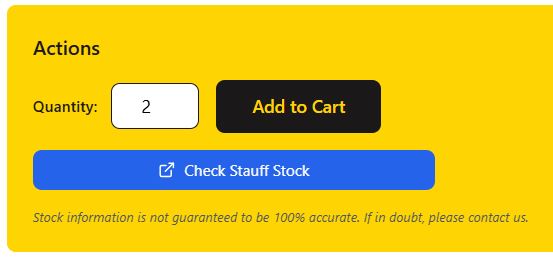
From Exact Search Results
Search for a specific part using exact part number
Review the part information and specifications
Set your desired quantity in the quantity field
Click “Add to Cart” button
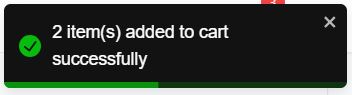
Confirmation notification appears
Part is added to your cart immediately
From Multiple Search Results

Screenshot needed: Search results table showing multiple parts, each with quantity fields and “Add to Cart” buttons, with one part highlighted as being added
Perform a fuzzy or description search
Browse the results table to find desired parts
Click on a part number to view full details
Follow the same process as exact search
Return to results to add additional parts
Quantity Considerations:
Default quantity is usually 1
Increase quantity before adding to cart
Stock warnings appear if quantity exceeds availability
Backorder notification for insufficient stock

Screenshot needed: Warning message showing “Only 5 available in stock. Remaining 3 will be backordered” with yellow warning icon
Adding from Different Sources
From Favorites
Access your favorites list
Click on a favorite part to view details
Set quantity and add to cart
Quick add functionality for frequent orders
From QR Scanning
Scan a part QR code or barcode
Review the automatically loaded part
Adjust quantity if needed
Add directly to cart from scan results
From Order History
View your recent orders
Click “Reorder” on specific items
Parts added with previous quantities
Modify quantities before final checkout
From Supplier Integration
Use Stauff stock checking features
Review supplier availability and pricing
Add supplier items directly to cart
Mixed cart with local and supplier items
Cart Management
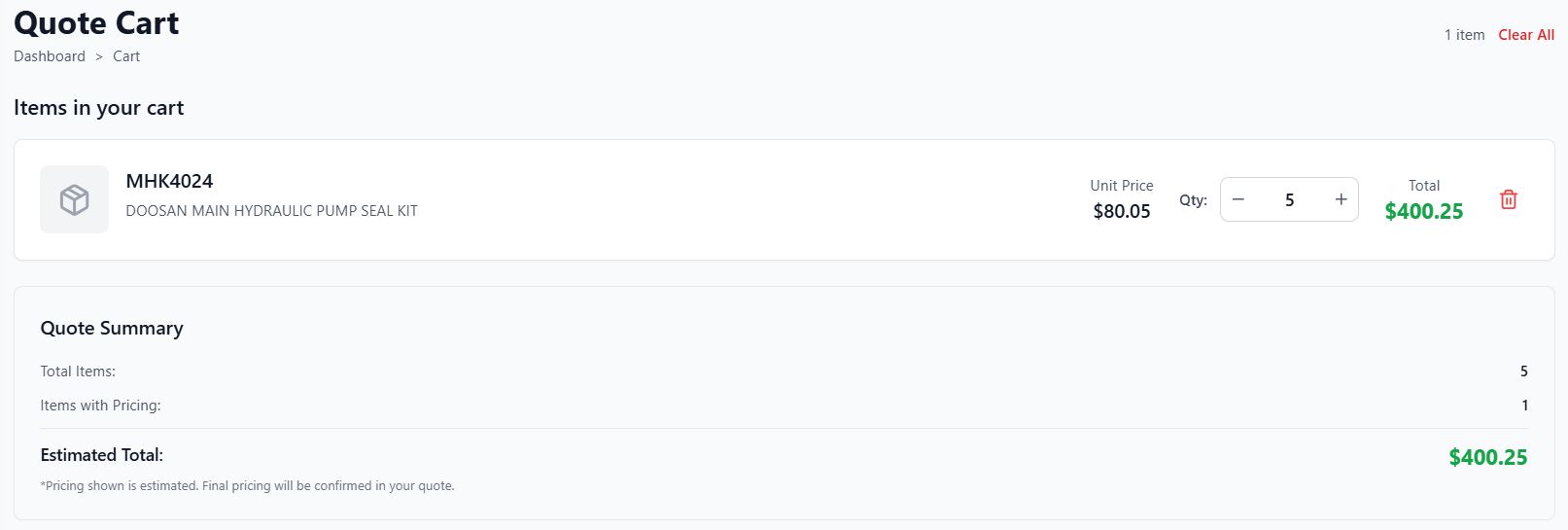
Viewing Your Cart
Click the cart icon in the navigation
Or use “View Cart” from dashboard quick actions
Review all items with quantities and pricing
See total order value and item count
Modifying Cart Contents
Changing Quantities
Find the item in your cart
Update the quantity field
Changes save automatically
Total updates in real-time
Removing Items
Click “Remove” next to unwanted items
Confirm removal if prompted
Item disappears immediately
Cart totals update automatically

Screenshot needed: Cart item with “Remove” button highlighted and confirmation dialog asking “Are you sure you want to remove this item from your cart?”
Clearing Entire Cart
Click “Clear Cart” button
Confirm you want to remove all items
Cart empties completely
Start fresh with new selections
Understanding Cart Information

Item Details Shown:
Part number and description
Quantity requested
Unit price specific to your account
Line total (quantity × price)
Stock status and availability
Cart Totals:
Subtotal of all items
Number of items in cart
Estimated shipping costs (where applicable)
Total order value

Screenshot needed: Cart showing multiple items with different stock indicators: green checkmark (In Stock), yellow warning (Low Stock - 3 available), red alert (Out of Stock - Check Supplier), blue info (Supplier Item)
Stock Status Indicators:
Green checkmark: All items available locally
Yellow warning: Partial availability or backorder
Red alert: Items not available locally
Blue info: Supplier items or special orders
Advanced Cart Features
Stock Validation:
As you add items, the system automatically:
Checks current stock levels
Calculates availability for your quantities
Identifies potential backorders
Suggests alternatives if needed
Backorder Handling:
When you order more than available:
System accepts the full quantity
Separates available vs. backorder amounts
Provides clear communication about delivery timing
Handles fulfillment professionally
Duplicate Item Resolution:
If you add a part already in your cart:
Quantities are combined automatically
Single line item shows total quantity
Notification confirms the combination
Avoids cart clutter
Cross-Device Synchronization:
Your cart synchronizes across:
Desktop and mobile devices
Different browsers with same account
Multiple browser tabs
After logout/login sessions
Cart Best Practices
Efficient Cart Building:
Add multiple items before checking out
Use favorites for frequently ordered parts
Review quantities carefully before adding
Check stock status for each item
Quantity Management:
Consider lead times when setting quantities
Plan for future needs with bulk ordering
Check minimum order requirements
Account for usage rates
Stock Awareness:
Understand Perth vs. supplier stock
Plan for backorder lead times
Consider alternatives for out-of-stock items
Monitor stock levels for critical parts
Mobile Cart Management
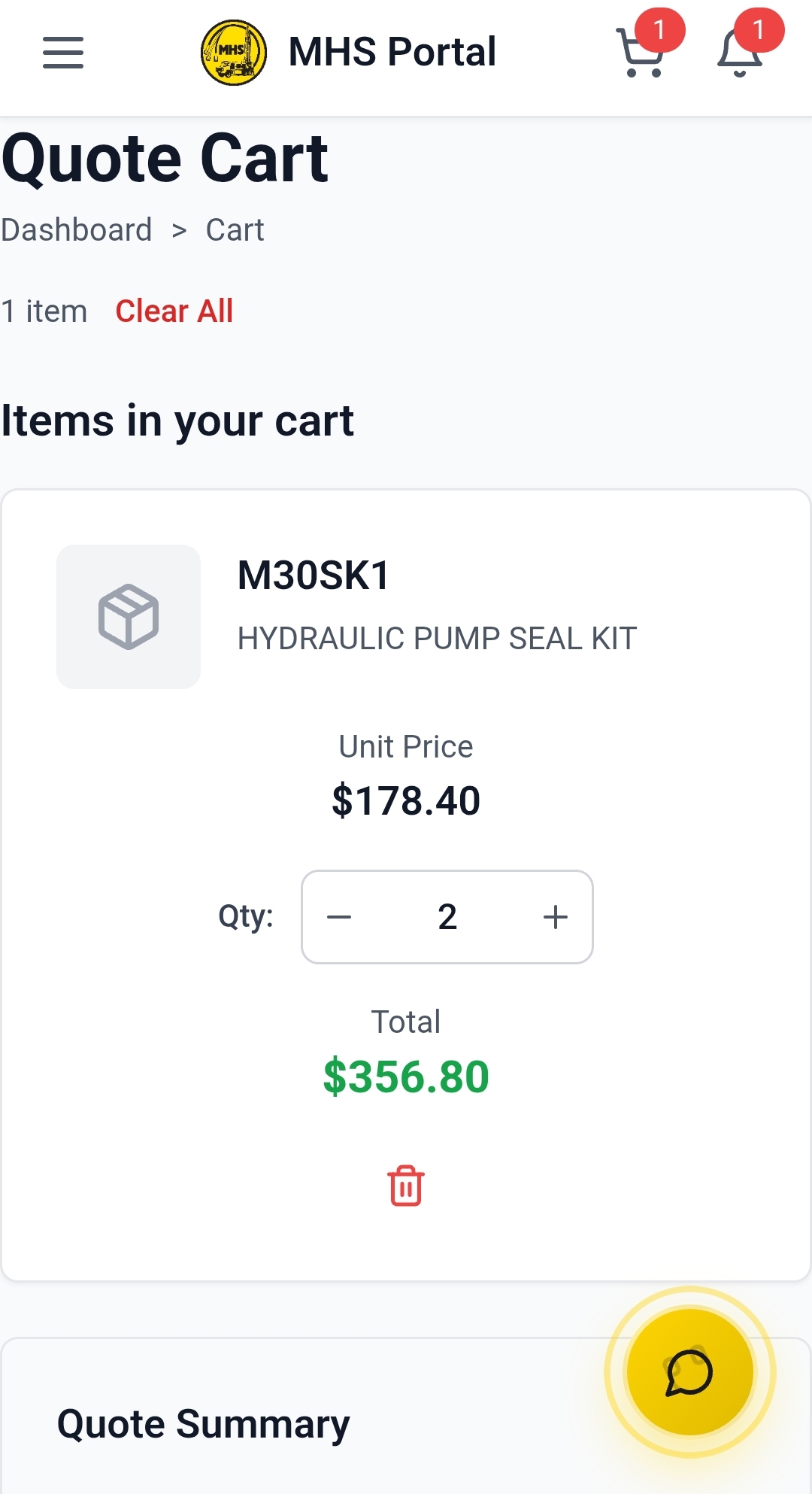
Mobile-Specific Features:
Touch-friendly interface for easy quantity changes
Swipe actions for removing items
Optimized layout for small screens
Quick add from scanning
Mobile Cart Tips:
Double-tap to edit quantities quickly
Use landscape mode for detailed review
Pull down to refresh stock status
Long press for additional options

Screenshot needed: Mobile cart quantity editing showing large +/- buttons and numeric input field with touch-friendly interface
Troubleshooting Cart Issues
Items Not Adding to Cart: - Check if you’re logged in properly - Verify part availability in search results - Clear browser cache and try again - Try different browser if issues persist
Quantities Resetting: - Browser cache issues - clear and retry - Session timeout - log back in - Stock changes - quantities may adjust automatically - System maintenance - try again later
Cart Not Syncing: - Check internet connection - Refresh the page manually - Log out and back in - Contact support if problems continue
Stock Status Confusion: - Refresh the cart for current stock levels - Review stock explanations in help sections - Contact MHS for specific part availability - Consider alternatives if stock is uncertain
Cart Security
Data Protection: - Cart contents encrypted during transmission - Secure storage on MHS servers - Personal to your account only - Regular security updates
Privacy Considerations: - Cart contents private to your account - Not shared with other users - Automatically cleared after extended inactivity - Can be manually cleared at any time
Next Steps
Once your cart is ready:
Understanding Stock Levels - Learn about stock levels and sources
Checkout Process - Complete your order
Order Tracking and Management - Track your order progress
Favorites Management - Save frequently ordered parts