Login and Account Access
This guide will help you access your MHS Partner Portal account for the first time and troubleshoot common login issues.
Accessing the Portal
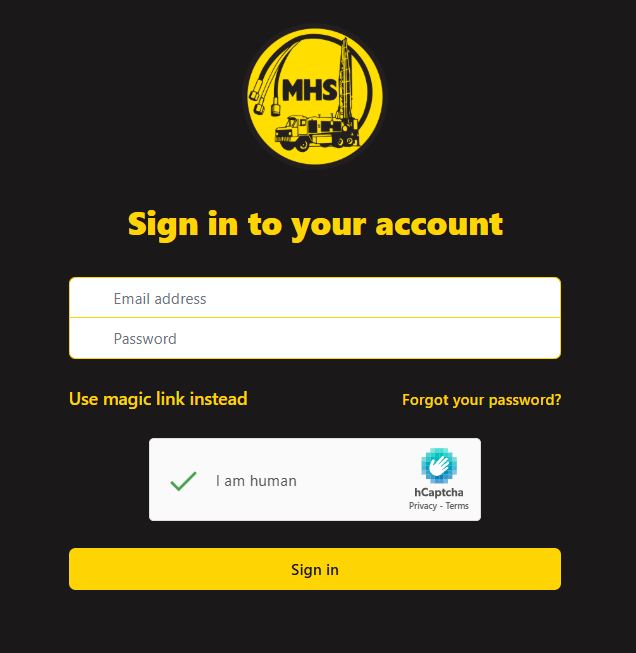
Open your web browser and navigate to the MHS Partner Portal URL
Click “Login” or you’ll be automatically redirected to the login page
Enter your credentials (provided by MHS)
Click “Sign In” to access your account
Login Credentials
Your login credentials consist of:
Email address: Your business email address registered with MHS
Password: A secure password (you’ll be prompted to change it on first login)
Note
Login credentials are provided by MHS when your account is set up. If you haven’t received your credentials, please contact customer service.
First-Time Login
When logging in for the first time:
Use the temporary password provided by MHS
You’ll be prompted to change your password to something secure
Complete any required account information
Verify your company details are correct
Password Requirements
Your new password must:
Be at least 8 characters long
Include uppercase and lowercase letters
Include at least one number
Include at least one special character (!, @, #, $, etc.)
Reset Your Password
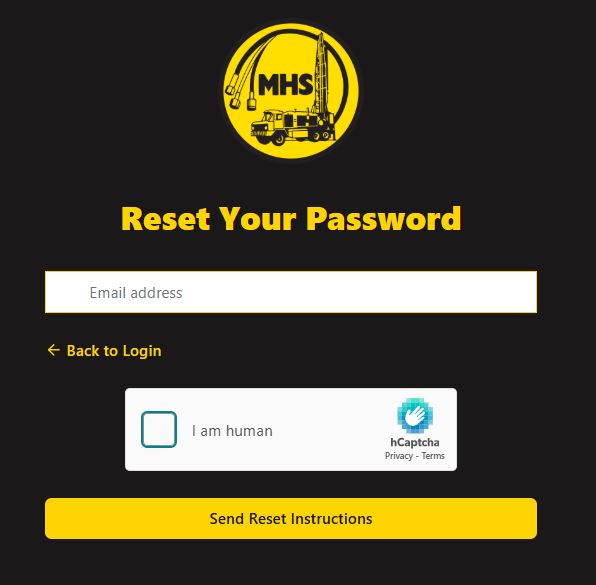
If you’ve forgotten your password:
Click “Forgot Password?” on the login page
Enter your email address associated with your account
Check your email for a password reset link
Follow the instructions in the email to create a new password
Return to the login page and sign in with your new password
Warning
Password reset emails may take a few minutes to arrive. Check your spam folder if you don’t see the email.
Account Security
To keep your account secure:
Don’t share your login credentials with others
Log out when finished, especially on shared computers
Use a strong, unique password for your account
Report any suspicious activity to MHS immediately
Troubleshooting Login Issues
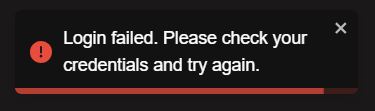
- “Invalid email or password” error:
Double-check your email address spelling
Ensure Caps Lock is not enabled
Try resetting your password
- “Account not found” error:
Verify you’re using the correct email address
Contact MHS to confirm your account is set up
- Page won’t load:
Check your internet connection
Try refreshing the page
Clear your browser cache and cookies
Try a different browser
- Still having trouble?
Contact MHS customer service with: - Your registered email address - Description of the error message - Screenshots if helpful
Browser Compatibility
Supported browsers:
Chrome (recommended): Version 90+
Firefox: Version 88+
Safari: Version 14+
Edge: Version 90+
Tip
For the best experience, keep your browser updated to the latest version.
Mobile Access
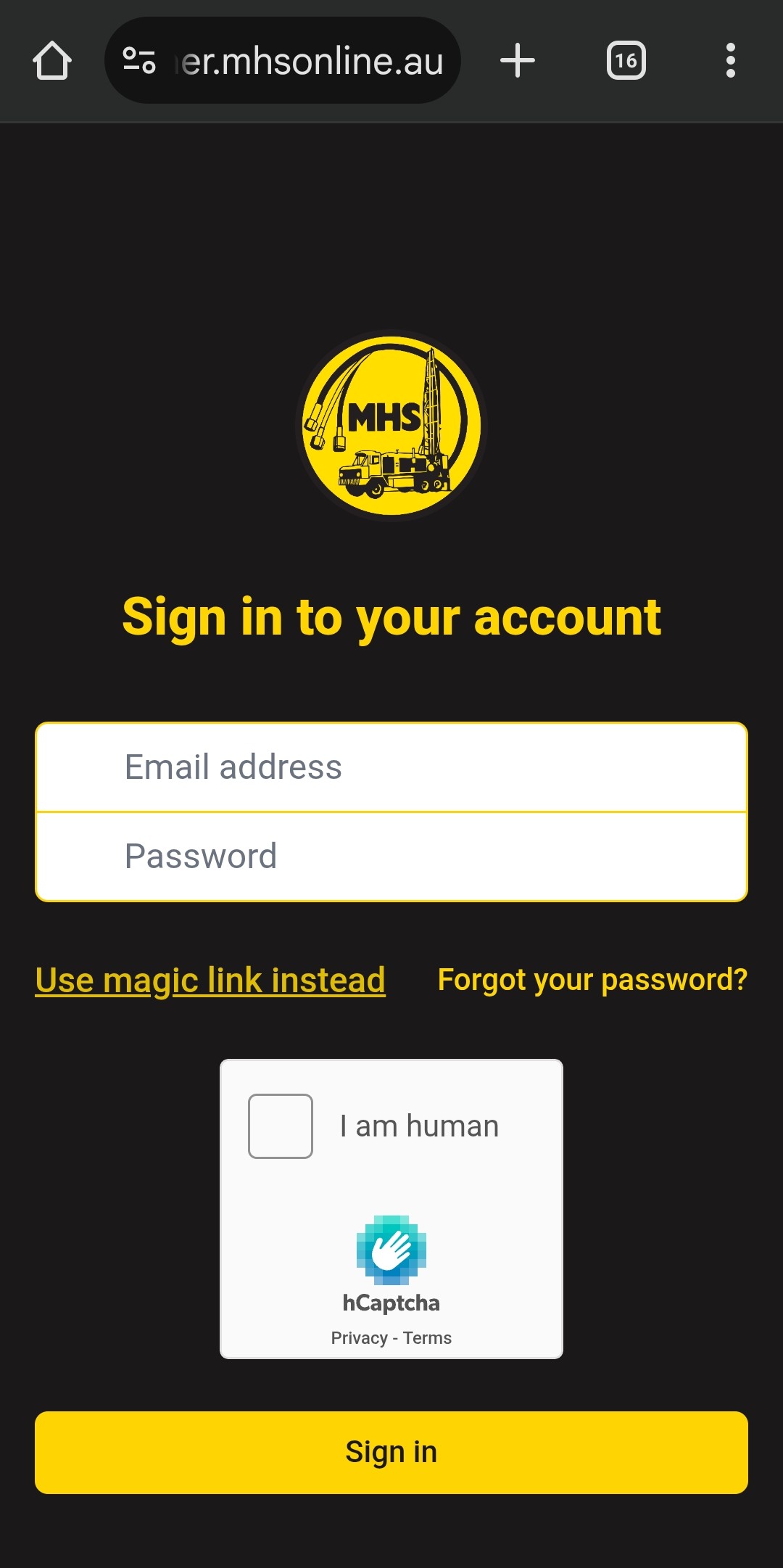
The portal is fully responsive and works on:
Smartphones: iPhone, Android phones
Tablets: iPad, Android tablets
Mobile features include:
Touch-friendly interface
QR code scanning for parts
Full ordering capabilities
Order tracking
Next Steps
Once you’ve successfully logged in:
First-Time Account Setup - Complete your account setup
Dashboard Overview - Tour your dashboard
Basic Search - Start searching for parts