Checkout Process
Learn how to complete your orders professionally through the MHS Partner Portal’s comprehensive checkout system.
Checkout Overview
The checkout process includes: - Final cart review and validation - Delivery address selection and confirmation - Purchase order reference management - Order approval workflow (where required) - Professional email confirmations
Starting the Checkout Process
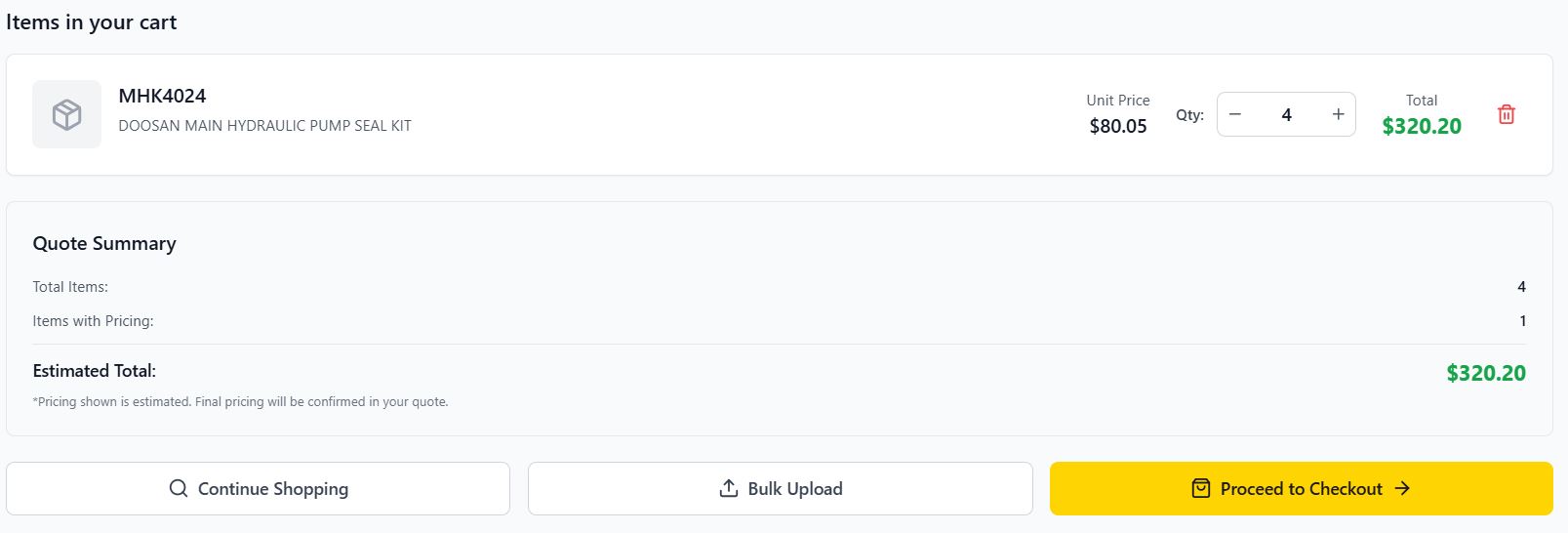
From Your Cart: 1. Review your cart contents thoroughly 2. Verify quantities and part numbers 3. Check stock status for all items 4. Click “Proceed to Checkout” when ready
Pre-Checkout Validation: The system automatically: - Validates current stock levels - Calculates final pricing based on your account - Identifies any backorder situations - Checks for approval requirements
Checkout Steps

Screenshot needed: Checkout step 1 page showing “Order Review” header, complete cart summary with items, quantities, prices, stock status indicators, and options to modify quantities or remove items
Step 1: Order Review
Cart Summary: - Complete list of all items - Quantities and unit prices - Line totals and order subtotal - Stock status for each item
Stock Validation: - Real-time stock checking - Separation of available vs. backorder items - Clear communication about delivery timelines - Alternative suggestions for out-of-stock items
Item Management: - Final opportunity to modify quantities - Remove unwanted items - Add additional items if needed
Step 2: Delivery Information
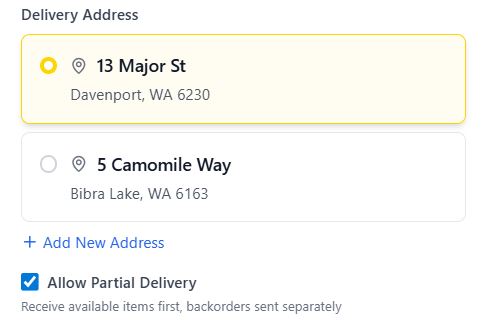
Delivery Address Selection: 1. Choose from saved addresses in your account 2. Or enter a new delivery address 3. Verify address details are complete and accurate 4. Add special delivery instructions if needed
Address Requirements: - Complete street address - City, state, and postal code - Contact person and phone number - Any access restrictions or special instructions
Delivery Options: - Standard delivery (most common) - Express delivery (where available) - Customer pickup (Perth warehouse) - Special delivery arrangements
Step 3: Order Details

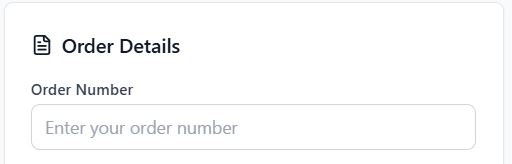
Purchase Order Reference: - Add your PO number for invoice matching - Include project codes or cost center information - Add any special references required by your organization
Order Notes: - Special instructions for processing - Urgency indicators for critical items - Technical requirements or specifications - Installation or delivery timing requests
Step 4: Final Confirmation
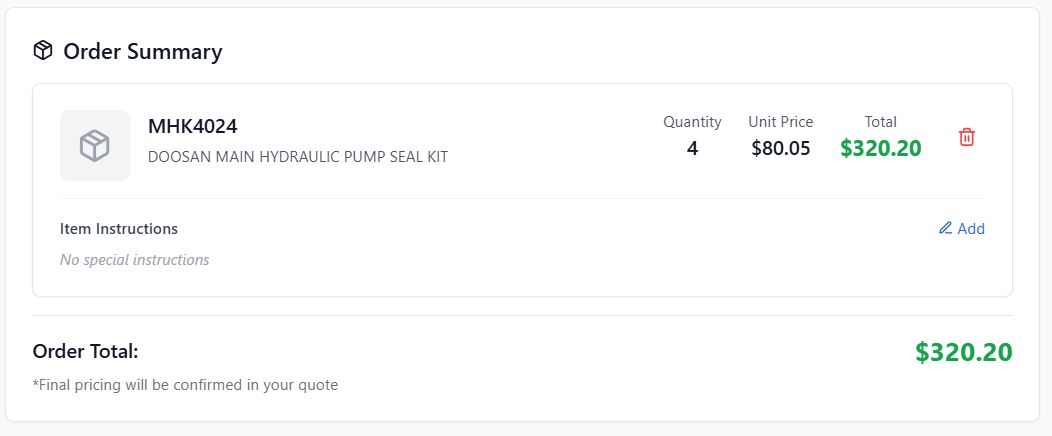
Order Summary Review: - Complete item list with final quantities - Total order value including all charges - Delivery timeline estimates - Approval requirements if applicable
Terms and Conditions: - Review terms of sale - Understand delivery commitments - Acknowledge backorder handling procedures
Final Submission: - Click “Place Order” to submit - Order confirmation appears immediately - Email confirmations sent automatically
Understanding Backorder Handling

Screenshot needed: Checkout page showing order with both available items (green checkmarks) and backorder items (yellow warning icons), with clear sections separating immediate shipping vs. backorder items
Mixed Stock Orders: When your order contains both available and backorder items:
Available Items: - ✅ Ship immediately from Perth warehouse - Standard processing and delivery times - Included in initial shipment
Backorder Items: - 📦 Automatically ordered from suppliers - Highlighted in yellow in confirmation emails - Separate delivery timeline - Professional supplier coordination
Email Communication: You’ll receive detailed emails showing: - “Items Shipping Immediately” section - “Backorder Items” section (if applicable) - Clear delivery timelines for each group - Professional presentation for record keeping

Screenshot needed: Sample order confirmation email showing “Items Shipping Immediately” section with green items and “Backorder Items” section with yellow items, including delivery timelines for each
Automatic Tracking: - Backorder items automatically tracked - Google Sheets integration for MHS staff - Proactive communication on delays - Fulfillment coordination
Order Approval Workflow

Screenshot needed: Checkout confirmation page showing “Order Requires Approval” message, “Pending Approval” status, estimated approval timeline, and contact information
When Approval is Required: Some orders require approval based on: - Order value thresholds - Account settings and credit terms - Special items or custom orders - First-time orders or new accounts
Approval Process: 1. Order submitted with “Pending Approval” status 2. Email notifications sent to approvers 3. Approval reviewed by MHS staff 4. Status updated and customer notified 5. Processing begins once approved
Approval Timeline: - Standard approval: 4-24 hours during business days - Complex orders: May require additional review - Urgent orders: Contact MHS directly for expedited approval - Automatic approval: For accounts with pre-approval limits
During Approval: - Order status shows “Pending Approval” - No changes allowed to order contents - Email updates on approval progress - Estimated approval timeline provided
Checkout Validation and Errors
Common Validation Checks: - Stock availability for all items - Account credit status and limits - Delivery address completeness - Minimum order requirements
Handling Checkout Errors:
Insufficient Stock: - Warning messages appear for affected items - Options to reduce quantities or accept backorders - Alternative part suggestions where available - Supplier stock checking recommendations
Address Issues: - Incomplete address validation errors - Invalid postal codes or city names - Missing contact information requirements - Delivery restriction warnings
Account Issues: - Credit limit exceeded warnings - Account approval required messages - Special authorization needed notifications
Order Confirmation
Immediate Confirmation: After successful order placement: - Order number assigned immediately - Confirmation page displayed - Email confirmation sent to your account - Order tracking information provided
Email Confirmations: You’ll receive detailed emails containing: - Complete order summary with part numbers and quantities - Order number for reference - Delivery address and timeline - Items shipping immediately vs. backorder items - Contact information for questions

Screenshot needed: Sample order confirmation email showing professional MHS branding, complete order summary, order number, delivery address, item details, and contact information
Order Documentation: - Professional formatting suitable for records - Purchase order reference included - Clear pricing breakdown - Terms and conditions reference
Post-Checkout Actions
Order Tracking: - Access order status from dashboard or recent orders - Track delivery progress - Receive updates on any changes - View complete order history
Order Modifications: - Limited modifications available before processing - Contact MHS for urgent changes - New orders required for additional items - Cancellation policies apply
Reordering: - Save successful orders for future reference - Reorder functionality for repeat purchases - Favorites integration for common items - Bulk reordering from order history
Mobile Checkout
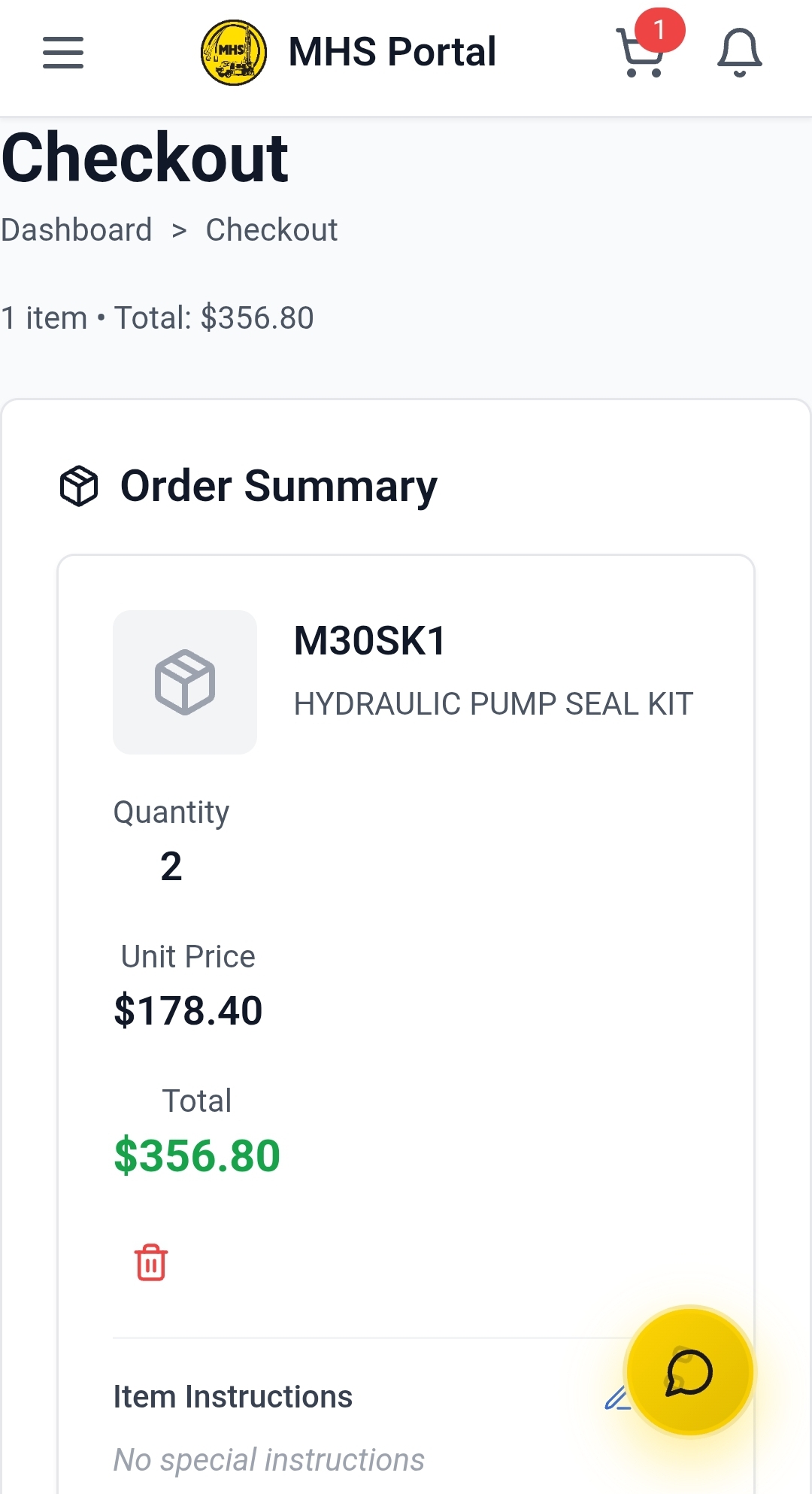
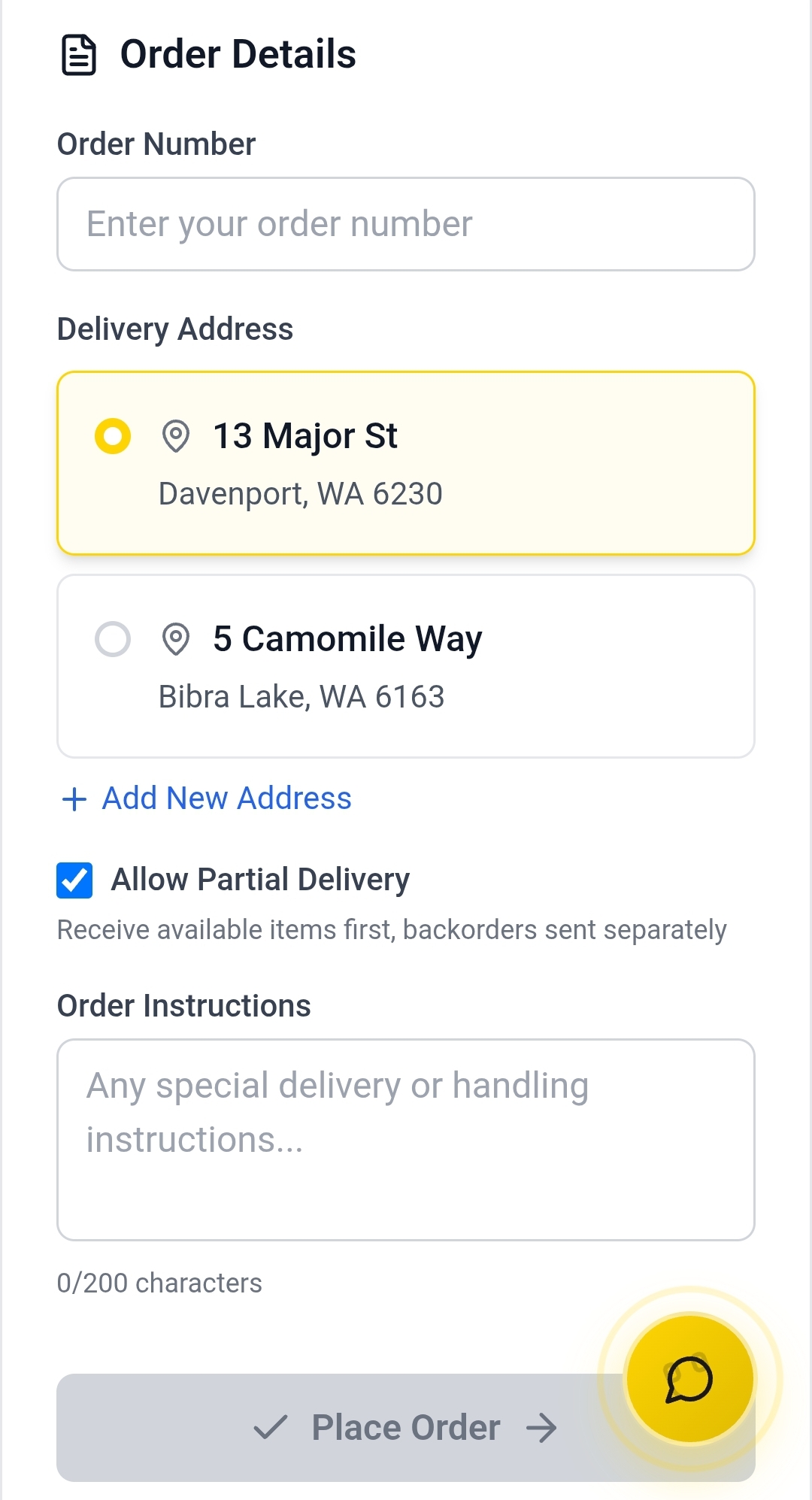
Mobile-Optimized Process: - Touch-friendly interface for all steps - Simplified navigation between steps - Auto-complete for addresses and details - One-handed operation where possible
Mobile-Specific Features: - GPS integration for delivery addresses - Camera integration for purchase order capture - Push notifications for order updates - Offline form completion where possible
Troubleshooting Checkout Issues
Common Checkout Problems:
Page Won’t Load: - Check internet connection - Refresh the page and try again - Clear browser cache and cookies - Try different browser if problems persist
Can’t Proceed to Checkout: - Verify cart has items - Check if you’re logged in properly - Ensure account is active and in good standing - Contact support if issues continue
Order Won’t Submit: - Check all required fields are completed - Verify stock availability hasn’t changed - Ensure delivery address is valid - Check account credit status
Email Confirmations Not Received: - Check spam/junk folders - Verify email address in account settings - Check with IT department about email filtering - Contact MHS if emails consistently missing
Order Appears Duplicated: - Don’t resubmit if you receive an error - Check recent orders for confirmation - Contact MHS immediately if you suspect duplication - Keep confirmation numbers for reference
Checkout Best Practices
Before Starting Checkout: - Review cart thoroughly before proceeding - Verify delivery address is correct and complete - Have purchase order information ready - Check account status and credit availability
During Checkout: - Complete all steps without rushing - Double-check quantities and part numbers - Read all confirmations and warnings carefully - Save confirmation details immediately
After Checkout: - Save confirmation emails for your records - Note order number for future reference - Monitor order status regularly - Contact MHS with any questions promptly
Security and Privacy
Secure Checkout: - SSL encryption for all transactions - Secure payment processing - Protected personal information - Safe storage of order history
Privacy Protection: - Order information private to your account - No sharing of purchase data - Secure communication with MHS staff - Confidential business relationship maintained
Next Steps
After completing checkout:
Order Tracking and Management - Track your order progress
Profile Settings - Update your delivery addresses
Favorites Management - Save frequently ordered parts
Common Issues and Solutions - Resolve any order issues